Unified File System

You are currently browsing articles tagged Unified File System.

EPiServer uses both an open source library (Lucene) and Microsoft Indexing Service to create the search index for files.

In EPiServer 4 was Microsoft Indexing Service responsible for building an index for ordinary files (i.e. the upload folder) and EPiServer Indexing Service was needed to get the versioned files in the documents folder indexed. The reason EPiServer has to implement their own search for the documents folder is because the path and file name is stored in the database and the content in a file with a guid as name.

In EPiServer CMS 5 all files are stored using the VirtualPathVersioningProvider (that always stores the path and file name in the database and the content as a file with a GUID as name). For this reason must the EPiServer Indexing Service be running and the web site configured to use it if you want to search files.

So how does the keywords get into the index?

You can not just take the content of a binary word document or pdf-file. The binary file must be converted to text first and for this EPiServer relies on a part of Microsoft Indexing Service. Applications can register converters the implement a COM-interface (IFilter) and this is used by Microsoft Indexing Service, SharePoint, EPiServer or any application intrested in getting the text out of a binary document.

You can have a look on the implementation with Lutz Roeder’s .NET Reflector if you load the EPiServer.InexingService.exe and look at the class: EPiServer.IndexingService.Indexers.FileItemIndexer

Do you want to create your own EPiServer File System?

A little more analysis reveals (at least with the 5.1.422 version) that EPiServer Indexing Service does not ask the VirtualPathProvider class for the content of the file! Instead it has hardcoded knowledge of the physical location used by the VirtualPathVersioningProvider (see EPiServer.IndexingService.ItemIndexerManager.CreateDocument). This makes it impossible to create your own implementation of EPiServer’s Unified File System and get the files indexed correctly.

See also: Storing metadata attached to uploaded files and EPiServer Tech Notes.

Tags: , , , , ,

I got a question about the File Manager from one of the attendees on my last EPiServer Developer training and I will share my answer with you.

You control the name, order and number of starting points in the File Manager for EPiServer CMS 5 by adding or removing Virtual Path Provides in web.config.

<virtualPath customFileSummary="~/FileSummary.config"> 

  <providers>  

    <add showInFileManager="false" virtualName="Page Files" virtualPath="~/PageFiles/" ... />  

    <add showInFileManager="true" virtualName="Global Files" virtualPath="~/Global/" ... />  

    <add showInFileManager="true" virtualName="Documents" virtualPath="~/Documents/"... />  

The virtualName is what you see in the File Manager.

EPiServer File Manager

You can hide providers from the File Manager by changeing the showInFileManager attribute to false but these providers will still be available from code. This can be usefull for generated thumbnail and similar.

If you open the File Manager without a page selected the first visible provider in the list will get focus.

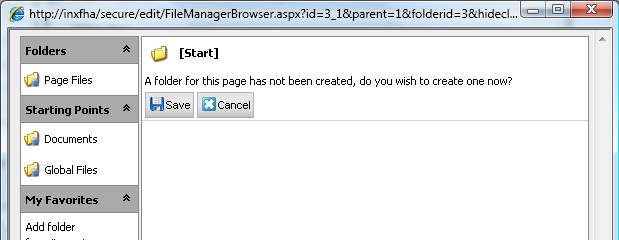
There is usually a current page when you open the file manager in edit mode (either in the action window or as a modal dialog) and you will always see the page folder or get a question if you want to create a new page folder if it does not exist. There is currently no way to disable page folders in the current (5.1.422) release as far as I know.

Which Virtual Path Provider that is used to store Page Folders is also controlled in web.config.

<episerver ...> 

  <sites>  

    <site ...>  

      <siteSettings ... pageFolderVirtualPathProvider="SitePageFiles" ... />  

A common mistake is to mix up the Page ID and the Page’s Folder ID. They are two separate number sequences and there is a property on the PageData obeject that stores the folder id for each page.

CurrentPage.Property["PageFolderID"].Value  

Follow this link to see more examples on how to use EpiServers Unified File System.

Tags: , , , , , , , , ,