ASP.NET

You are currently browsing articles tagged ASP.NET.

If you allow the visitors of your site to contribute, for example with a simple comment this textbox, you take the risk that a malicious user inject evil code in a comment.

This evil code is then executed in the browser by your sites’ ordinary visitors. Scripts can steals passwords (maybe your own admin account), trick the user to give up other senestive data or download malvare because they trust your site.

This kind of security vulnerability is reffered to as XSS or Cross Site Scripting

Always have input validation and filter you input

A common aproach is to sanitize the data with a whitelisted or blacklisted characters to eliminate dangerous characters before storing or using the data. Another, is to always html encode data when it is rendered.  But it is harder than you think to get it right!

70 ways to write the same character

So you think you are smart and have a string replace or regular expression that removes “<” from the user’s input on your website to be safe? I guess you need to test again… I had too!

Did you know that there is 70 diffrent ways to write the “<” character in html? Read Robert Hansen’s good cheat sheet that lists known XSS attacks to get scared and take the problem serionsly.

Tags: ,

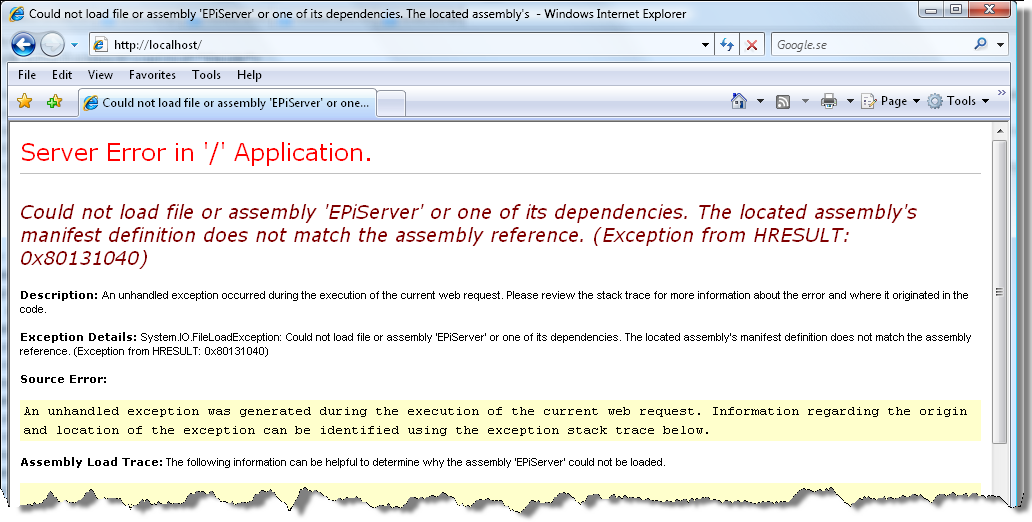
Suddenly everything stops working you do not have clue what’s gone wrong. You just get annoying exceptions thrown in your face explaining that it could not find a specific version of a DLL or that the located assembly’s manifest definition does not match the assembly reference.

YSOD-Could not load file or assemblySometimes you can see a Yellow Screen of Death telling you that you application tries to use a version of an assembly that you know that you do not want to use. But why?

Visual Studio add <assemblies> to web.config

This can be a problem if you have several different versions of an assembly installed in the GAC at the same time. Under some conditions Visual Studio thinks that you must add references to assemblies to be able to successfully compile your asp.net files. Unfortunately the added references have the opposite effect – nothing compiles!

    <compilation defaultLanguage="c#" debug="true">  
      <assemblies>  
         <add assembly="EPiServer, Version=5.1.422.122, Culture=neutral, PublicKeyToken=8FE83DEA738B45B7"/>  
         [ . . . ]  
      </assemblies>  
    </compilation>

As you know your asp.net files (global.asax, aspx-files, etc) are parsed and converted to C#-code that is then compiled with the C#-compiler when first accessed. The assemblies added in the <assemblies>-tag are added as references in the same way as you add references to a normal project in Visual Studio. You risk getting file not found errors or strange compilation errors. Since these references are parameters to the compiler, binding redirects in the runtime tag in web.config has no effect.

Tip: Remove the whole <assemblies>-tag or at least all EPiServer references.

Visual Studio adds <%@ Register %> to your markup

Another place where you can get references to unwanted versions of assemblies added by Visual Studio is in you markup. Automatically added <%@ Register %> with strongly named references to assemblies will sooner or later cause problems for you. With strongly named I mean assembly names including version number and public key. If it is just a name it will load whatever version that is placed in your bin-folder.

Tip: Always delete "<% @ Register TagPrefix ="EPiServer" … %>" from you markup.

The import of EPiServer controls are handled elsewhere. Take a look at the <pages><controls>-tag in your web.config and you will understand. This also has the side effect of making most of EPiServer classes available in front-end code without adding the <assemblies>-tags.

Tip: Consider adding you own controls to the <pages><controls>-tag in your web.config instead of adding a <%@ Register %>-tag on every page.

Tip: Remove the version number and public key from the assembly attribute.

Use <bindingRedirect> in your web.config

The key to be able to use a new version of an assembly without recompiling everything is the <bindingRedirect>-tag in web.config. EPiServer Manager updates this part of your web.config when you upgrade your site.

  <runtime>  
    <assemblyBinding xmlns="urn:schemas-microsoft-com:asm.v1">
      <dependentAssembly>
        <assemblyIdentity name="EPiServer" publicKeyToken="8fe83dea738b45b7" culture="neutral"/>
        <bindingRedirect oldVersion="5.0.0.0-5.65535.65535.65535" newVersion="5.1.422.4"/>
      </dependentAssembly>

FileLoadException

Sometimes it is not obvious why an assembly fails to load. Turn on logging in Fusion to get more information that might help you track down the issue. (Fusion is the name of the part of the dot net framework responsible for loading assemblies)

There is a property on System.IO.FileLoadException called FusionLog that contains details on why an assembly failed to load. The content of this property is displayed on the Yellow Screen of Death.

Enable Fusion Log with RegEdit

Tip: Enable assembly binding logging use Fusion Log Viewer (Fuslogvw.exe) or set the registry value EnableLog in HKLM\Software\Microsoft\Fusion to 1. Note that you have to restart your application (use iisreset) for the changes to have any effect.

Tip: Remember to turn off fusion logging when you are done since there is a performance penalty to have it turned on.

EPiServer PlugInException

Sometimes the FileLoadException is an inner exception of another exception so the Yellow Screen of Death does not show the details from the fusion log. This is a quite common scenario for EPiServer since the first thing that happens when the application start is that EPiServer loads ALL assemblies in the bin-folder and searches for PlugIn-attributes.

Assembly Binding Log Viewer - fuslogvw

Tip: In these cases you can change the setting in the Assembly Binding Log Viewer to "Log bind failures to disk" and get all the details you need to track down the issue. I also recommend using a custom log path.

Fix your references by editing your csproj-file

Finally, take a look at your csproj file using notepad (or unload the project in Visual Studio to be able to open it as text). When you add references using Visual Studio you will get a assembly reference with both version number and public key and this can give you some trouble when you upgrade a vendor assembly to a newer version.

    <Reference Include="StarSuite.Core">  
      <SpecificVersion>False</SpecificVersion>  
      <HintPath>..\Lib\StarSuite.Core.dll</HintPath>  
      <Private>True</Private>  
    </Reference>

Tip: Edit your csproj-file as text and keep only the assembly name. When you have removed the version and public key.

Tip: Create a Library-folder and store a copy of all references assemblies. It can be very nice to have if Visual Studio decides that it want to clean the bin folder and removes files that you need there.

Tags: , , , , , , ,

EPiServer has a site tag with a lot of attributes. When you change the web.config from EPiServer Manager or by calling Save on the Configuration class yourself all attributes will be on one looong line (this is default behaivour by the dotnet framework so its not EPiServers fault).

If you put web.config under version control and would prefer if changes to singe attributes are easy to detect with a diff tool, this is not the optimal.

It is possible to change formatting in Visual Studio to get one attribute per line and that works much better for text diff tools. (This requires that you do your changes with Notepad or Visual Studio and not use EPiServer Manager or the Admin Mode to change the settings.)

Go to Tools -> Options -> Text Editor -> XML -> Formatting and select “Align attributes each on a separate line”

Click Edit -> Advanced -> Format Document (or Format Selection if you only want to adjust a part of the file) before you check in your web.config to reformat.

Voilà! Your web.config is readable!

(See also discussion in EPiServer Developer Forum)

Tags: , , ,

It is well know that once an e-mail address have been published on a home page it will not take a long time before it is flooded with spam.

The usual sollution to this is to to either use a feedback form (that do not use the mail address in clear text as a parameter) or a use a Captcha to reveal it.

I found a new good Captcha service and API that I would like to recommend: http://mailhide.recaptcha.net/

Here is an example of how it could look like using my e-mail address:
fred???@inexor.se

Tags: , ,

Profile Data in EPiServer

To store settings for the current user, use the built-in Profile support in ASP.NET.

EPiServer is using this for its own need to store information on a per user basis. (The built-in values EPiServer needs are accessible through the class EPiServerProfile that is a subclass of the ASP.NET class ProfileBase).

You can get access to the current users EPiServer’s Profile instance accessing the static property Current on the EPiServerProfile class. There is also a default indexer property inherited from ASP.NET’s ProfileBase class that you can use for you own values.

EPiServer.Personalization.EPiServerProfile.Current["MySetting"] = "Test123";
			

For performance reasons use only string, int, DateTime and avoid objects that must be serialized. There is also support for handling anonymous users (not logged in) if needed.

Read more: http://msdn2.microsoft.com/en-us/library/at64shx3.aspx

Update: Read more about changes to Profile information in SP1 for EPiServer CMS 5 R1.

Tags: , ,

« Older entries